


SQL database files (MDF/NDF) contain all the objects like views, stored procedures, tables, functions, defaults, triggers, and more. Like other data files, these can also be susceptible to inconsistency and integrity errors. They can get corrupt due to various internal and external factors, such as disk errors where they are stored, sudden system shutdown or crash, abrupt SQL server closing or crash, etc.
If your SQL database files get corrupted, it is not a major cause of concern, as the server provides a powerful command- DBCC CHECKDB to repair them. But it may not resolve complex corruption issues, or sometimes it may cause data loss. In this article, we will explain the effective methods to repair and restore SQL databases.
What Causes SQL Database Corruption?
Your SQL database files can get corrupt due to following reasons:
- Hardware Failures
- Unexpected System Shutdowns
- Errors within SQL Server or improperly applied patches can compromise database integrity.
- Improper Server Shutdown
- Malware Attacks on system hosting Server can corrupt MDF files by altering their structure.
- Insufficient memory or exceeding I/O limits during database transactions.
Corruption recovery is one of many areas where hands-on command-line confidence pays off, so if you are still building that foundation, deliberate sql practice for data engineers will make the steps below far easier to follow.
Effective methods to repair SQL database
When your SQL database is inaccessible, corrupted, damaged or goes into suspect mode, then you can repair it by the methods below:
1-Restore from backup
If you have created the .bak file to save your database then you can restore the corrupt database using it. For a successful recovery process, your backups should be accessible, readable and free of corruption and you must have all permissions. To confirm this, it is highly recommended to check the integrity of the backups and permissions on the folder on database-level and file-level. Next, follow these steps to restore the backup file:
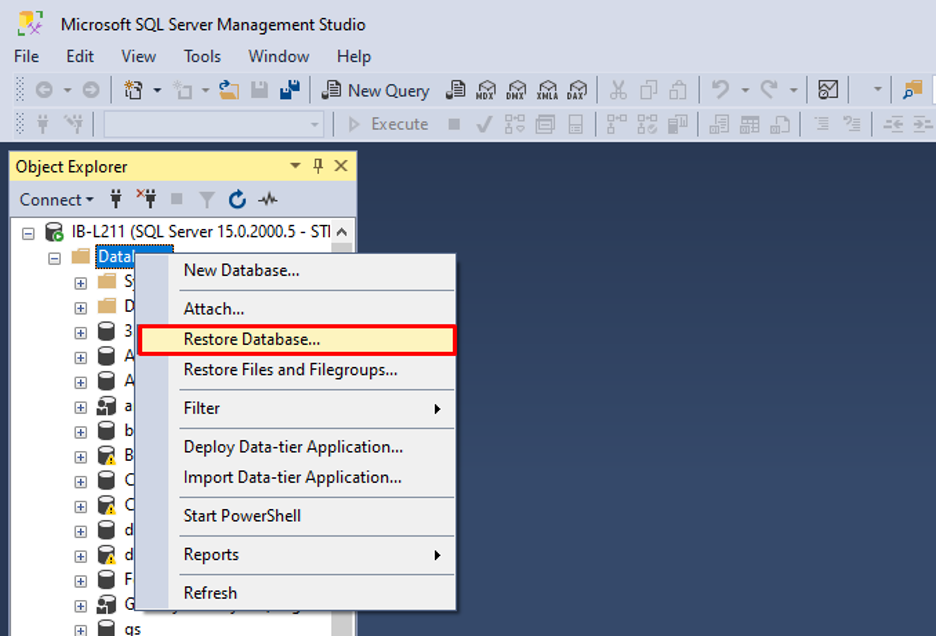
- In SSMS, connect to the appropriate instance. Right-click on databases. Select Restore Database.
- In Restore window, select the database that you want to restore. In my case I selected
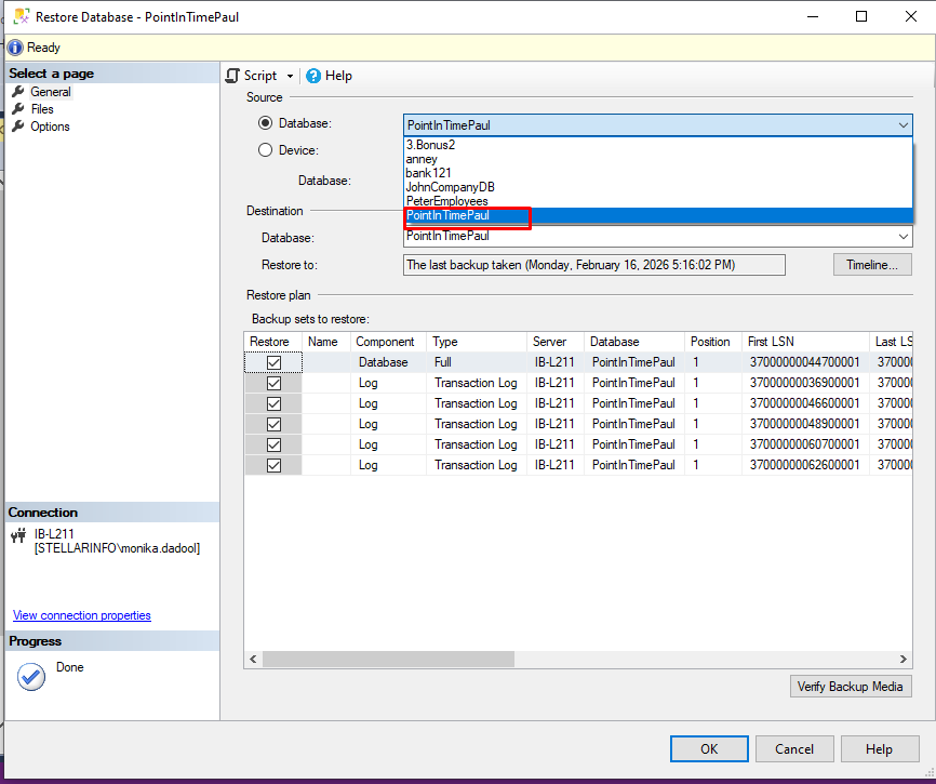
- Once you select a database, all information related to it will appear automatically. For example, restore to the location, and backup sets in it. However, you can click on the Timeline option to modify it (if required). Click
- It starts restoring your database. Once completed, click
2-Use DBCC CHECKDB command
If the backup is not available, then follow these steps on your SSMS:
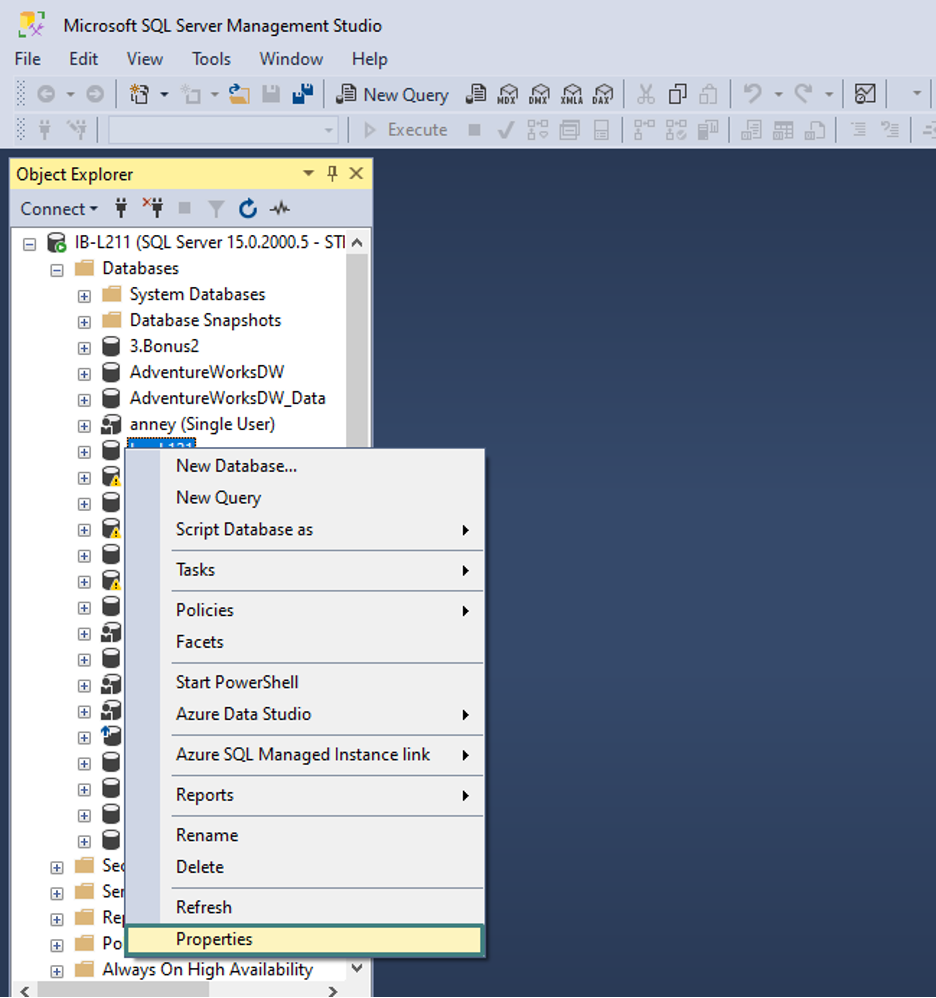
- Under Object Explorer, connect to the appropriate database engine instance and then expand it by clicking on +

- Right-click on the database which you want to repair then select
- In Database Properties window, under select a page, click Options
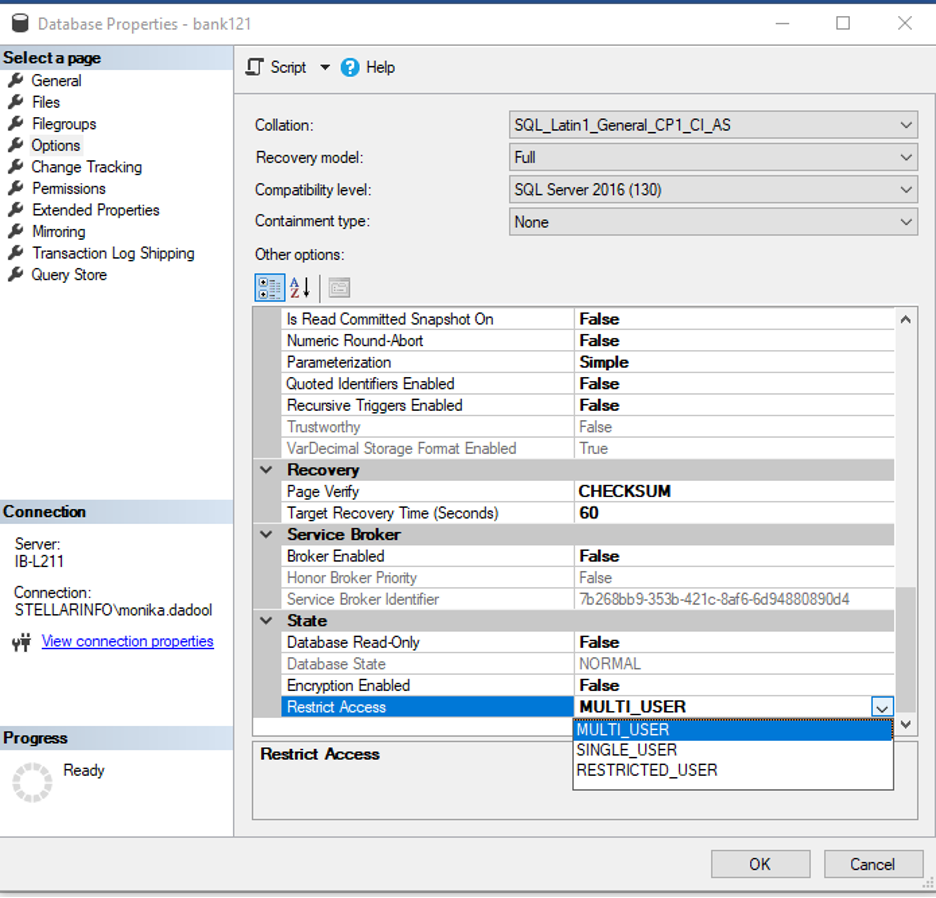
- From Restrict Access option, select SINGLE_USER, and click
This will change the state of the database into SINGLE_USER which is a mandatory to repair database using DBCC CHECKDB. Next, try one of the following repair options
- REPAIR_REBUILD: To repair missing rows, indexes with no data loss. Make sure your database doesn’t contain FILESTREAM data.
DBCC CHECKDB (‘YourDatabaseName’, REPAIR_REBUILD);
- REPAIR_ALLOW_DATA_LOSS: It can repair maximum errors reported by DBCC CHECKDB. However, it may allocate the rows while repairing the database, leading to data loss. So you can use it as a last resort, as advised by Microsoft.
DBCC CHECKDB (‘YourDatabaseName’, REPAIR_ALLOW_DATA_LOSS);
- Next, change the database state by following command:
ALTER DATABASE YourDatabaseName SET MULTI_USER;
Limitations of Manual methods to repair SQL database
- Using REPAIR_ALLOW_DATA_LOSS may result in permanent data loss.
- Manual recovery using DBCC CHECKDB requires a strong understanding of SQL Server and database structures.
- Restoring large databases or relying on backups can take considerable time.
- Ineffective in severe corruption
- Recovery may not always restore the database to a consistent state.
Use a professional SQL repair tool- An effective method to repair SQL database
If your SQL database is severely corrupted and you want to recover all corrupted data with complete precision then you can opt for a professional SQL repair tool like Stellar Repair for MSSQL. It can repair MDF and NDF files quickly. It has a higher recovery success rate, you can quickly recover all data including defaults, procedures, views, tables, etc. with complete precision. Also, you don’t require backup file to use it to repair the database. The interface is simple. You can download it in a few seconds and launch it to check how it works. It allows you preview recoverable objects before saving.
Conclusion
A damaged or corrupted SQL database file can lead to downtime as it prevents you from opening your important database or performing any operations on it. As an SQL user, you must learn how to repair SQL database files and we’ve explained the most effective method above. Although DBCC CHECKDB is a handy tool to repair corrupt or damaged mdf/ndf files, it cannot repair severely damaged or corrupt database files. Also, it can cause data loss. So you can use it as a last resort or back up the original database file before using it.
However, in cases where DBCC CHECKDB fails to provide you desired results or you have no backup file to repair/restore the SQL database file, remember to use an advanced SQL repair tool, such as Stellar Repair for MSSQL. It can repair corrupt, inaccessible, or SUSPECT mode database of any size, with complete integrity.

0 Comments