


Knowing when to use an ai talking photo generator instead of setting up your studio camera saves independent educators and YouTube tutorial creators hours of repetitive setup without turning their main lessons into robotic slideshows. If you teach coding, Blender modeling, audio production, or spreadsheet automation online, your audience subscribes for your screen walkthroughs and your hard-won troubleshooting tips. Yet every creator hits the same physical wall: spending forty-five minutes adjusting key lights, checking microphone gain, and clearing background clutter just to film a twenty-second module introduction or a quick errata patch for an older course.
Let’s draw a bright line right away. If you are filming a personal vlog, a hardware camera review, or a flagship story-driven essay where your live hand gestures and unscripted reactions carry the whole piece, turn on your real camera. No synthetic tool replaces a creator testing a lens in the field or riffing live on a whiteboard.
However, most educational channels and online courses are made up of two very different types of footage: the core screen-recorded demonstration, and the short structural glue around it. Using a still portrait to generate those 15-to-30-second structural bumpers lets you ship more tutorials without living under hot studio lights seven days a week.
Where an ai talking photo generator beats setting up a live camera
When solo creators audit how they actually spend a 12-hour production day, the screen recording is rarely the part that causes procrastination. What delays publishing is the friction of getting “camera ready” for tiny bridging segments that only last twenty seconds on screen.
| Tutorial Segment Type | Best Production Method | Why It Works Best for Viewers | Time to Produce or Patch |
| Main flagship hook & personal stories | Live studio camera + mic | Builds personal connection, energy, and unscripted humor | 45 to 60 minutes (including lighting setup) |
| Core hands-on software walkthrough | Screen recording + live mic | Viewers need to watch the cursor, shortcuts, and real-time errors | 30 to 90 minutes |
| Course chapter headers (15 to 25 sec) | Talking photo presenter | Clean visual signpost naming what the module covers | Under 5 minutes |
| Version update or errata bumper | Talking photo presenter | Inserts a quick spoken correction into a 2024 video without a reshoot | Under 5 minutes |
| Multilingual channel intros | Talking photo presenter | Welcomes Spanish, Portuguese, or Hindi viewers in their own language | 10 minutes per language |
Look at the fourth row in that table. Suppose you published a 25-minute Python or Figma tutorial six months ago that still ranks well in search, but the software vendor just renamed a settings tab in version 4.2. You do not want to delete a high-performing video, and you definitely do not want to set up your tripod and try to match the shirt and lighting from six months ago just to record a 15-second update note. Generating a clean spoken bumper from your standard creator portrait lets you drop a crisp correction card right before the changed step in five minutes.
How to produce natural creator intros from a single portrait
The difference between a talking portrait clip that feels like a clean editorial bumper and one that feels awkward comes down to three things: the source photo, the script length, and how you transition into your screen recording.
1. Shoot one dedicated “neutral presenter” portrait
Do not crop a blurry vacation selfie or a dramatic thumbnail face where you are pointing at an imaginary explosion. Next time your studio lights are already turned on for a main shoot, take two minutes to snap three clean, front-facing still photos at eye level.
Look directly into the lens with a relaxed, natural posture and even lighting across both cheeks. Keep your shoulders square and avoid holding a microphone prop or coffee mug in front of your chin. Having two or three consistent studio portraits on disk gives you a reusable visual anchor for an entire semester of course modules.
2. Write tight 40-word signpost scripts
A photo presenter works best in short bursts of 15 to 30 seconds. Do not ask a still portrait to deliver a four-minute monologue while nothing else changes on screen. Instead, write a tight three-sentence bumper that answers three questions for the learner:
- What we are building right now: “In Module 4, we’re wiring up the Stripe webhook handler and testing failed payment retries locally.”
- What you need open before starting: “Make sure your local CLI listener is running in Terminal before you copy the signing secret.”
- The handoff to the screen: “Let’s switch over to VS Code and inspect the payload.”
Once those forty words are ready, creators use Leadde.ai to upload their studio portrait, paste the short bumper script, pair it with their cloned or selected voice profile, and export a 1080p intro clip with synchronized captions.
3. Cut to the active screen at the 15-second mark
Online learners are impatient. Whether you film on a mirrorless camera or use a talking portrait, holding a full-screen talking head for too long causes viewers to scrub ahead.
Use the presenter full-frame (or in a clean side-by-side card) for the first 10 to 15 seconds to establish who is speaking and what the chapter covers. As soon as you name the first keyboard shortcut, menu item, or code block, cut directly to the high-resolution screen capture while the voiceover finishes the sentence.
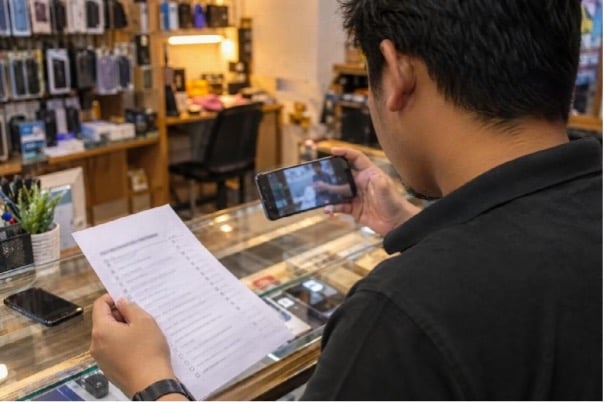
Also remember that a huge share of tutorial viewers watch inside a small browser split-screen while following along in their own software window, often with the volume turned low. Follow the W3C WAI captioning guidelines by keeping subtitles concise and high contrast so learners never miss a technical term or file path.
A sensible rule of thumb for hybrid creator channels
You do not have to choose between being a 100 percent live-camera channel and an all-synthetic channel. The smartest tutorial creators use a hybrid split: they save their camera energy for flagship channel trailers, personal opinions, and deep-dive hooks where live charisma matters, and they use a talking photo workflow for course chapter dividers, patch notes, and multilingual lesson summaries across 88 languages and 175 dialects. That balance protects your voice, keeps older courses accurate, and lets you spend your best hours teaching rather than adjusting studio lights.

0 Comments